


Troubleshooting PC Issues: Easy Fixes for Common Computer Problems
We all know how frustrating it is when our computers act up. Whether it’s a slow startup, random crashes, or weird noises, these issues can throw a wrench in our day. But don’t worry - we’ve got your back. Let’s dive into some straightforward troubleshooting methods that anyone can use to get their PC back on track. No tech jargon, just simple steps you can follow.
Troubleshooting PC Issues: Where to Start?
When your computer starts misbehaving, the first thing to do is stay calm. Panicking won’t help, and most problems have easy fixes. Here’s a quick checklist to get started:
Restart your computer. Sounds basic, but it often clears temporary glitches.
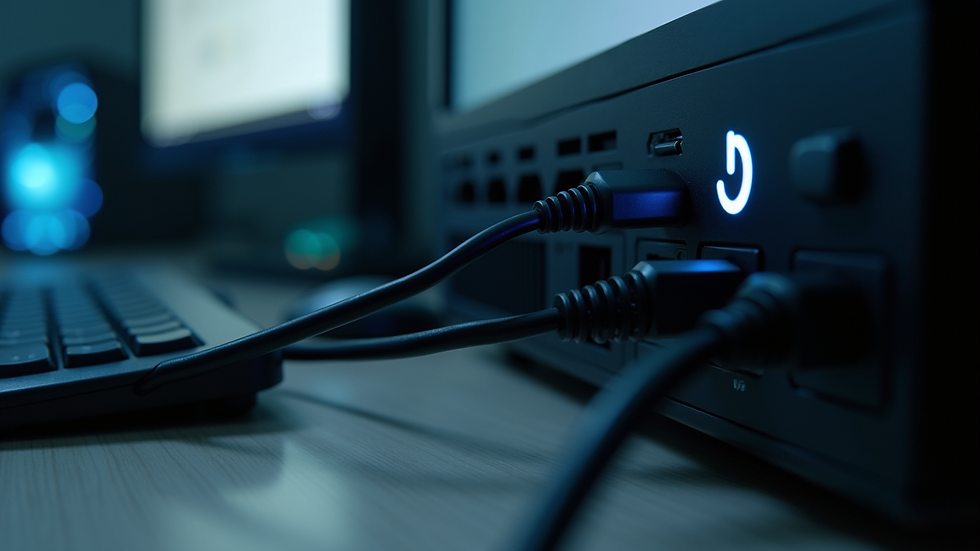
Check all cables and connections. Loose or unplugged cables can cause all sorts of trouble.
Look for error messages. They can give clues about what’s wrong.
Run a virus scan. Malware can slow down or crash your system.
Update your software and drivers. Outdated software can cause compatibility issues.
If you’re still stuck, don’t worry. We’ll walk through some common problems and how to fix them.

What are the Most Common Computer Failures?
Before we jump into fixes, it helps to know what problems pop up most often. Here are some of the usual suspects:
Slow performance - Your PC takes forever to boot or open programs.
Blue screen errors - The dreaded “blue screen of death” that forces a restart.
Overheating - The computer gets hot and shuts down unexpectedly.
No power or won’t turn on - Nothing happens when you press the power button.
Internet connectivity issues - Can’t connect to Wi-Fi or the internet drops out.
Software crashes - Programs freeze or close without warning.
Strange noises - Clicking or grinding sounds from the hard drive or fans.
Knowing these helps us focus on the right troubleshooting steps.
How to Fix Slow Performance
Slow computers are the most common complaint. Here’s how to speed things up:
Close unnecessary programs. Too many apps running at once can bog down your system.
Clear temporary files. Use built-in tools like Disk Cleanup on Windows.
Check startup programs. Disable apps that launch automatically but aren’t needed.
Run a malware scan. Viruses and spyware can slow your PC.
Upgrade hardware. Adding more RAM or switching to an SSD can make a big difference.
If your PC is still sluggish, it might be time for a professional checkup.
Dealing with Blue Screen Errors
Blue screen errors can be scary, but they usually point to hardware or driver issues. Here’s what to do:
Write down the error code. It helps identify the problem.
Restart your PC. Sometimes it’s a one-time glitch.
Update drivers. Outdated or corrupt drivers often cause crashes.
Check for hardware problems. Faulty RAM or hard drives can trigger blue screens.
Run system diagnostics. Tools like Windows Memory Diagnostic can help.
If the blue screen keeps coming back, it’s best to get expert help.

Fixing Overheating Issues
Overheating can damage your computer if left unchecked. Here’s how to keep things cool:
Clean dust from vents and fans. Dust blocks airflow and traps heat.
Use your PC on a hard, flat surface. Soft surfaces like beds block ventilation.
Check fan operation. Make sure all fans are spinning properly.
Limit heavy tasks. Running too many demanding programs at once can cause heat buildup.
Consider a cooling pad. Especially useful for laptops.
If overheating persists, it might be a hardware fault needing repair.
What to Do When Your PC Won’t Turn On
Nothing’s more frustrating than a dead PC. Here’s a quick troubleshooting guide:
Check the power source. Make sure the outlet and power strip work.
Inspect the power cable. Look for damage or loose connections.
Try a different power cable or adapter. Sometimes the cable is the problem.
Remove external devices. Sometimes peripherals cause startup issues.
Reset the power supply. For desktops, unplug for a few minutes, then plug back in.
If your PC still won’t power up, it’s time to call in the pros.
Internet Connectivity Troubleshooting
Internet issues can be tricky but often have simple fixes:
Restart your router and modem. Power cycling often restores connection.
Check Wi-Fi settings. Make sure you’re connected to the right network.
Forget and reconnect to the network. This resets the connection.
Update network drivers. Outdated drivers can cause connection drops.
Run the network troubleshooter. Windows has a built-in tool for this.
If your internet still won’t cooperate, your ISP or a technician might need to step in.
When Software Keeps Crashing
If your programs keep freezing or crashing, try these steps:
Update the software. Developers often fix bugs in updates.
Reinstall the program. Sometimes files get corrupted.
Check system requirements. Make sure your PC meets the software’s needs.
Close background apps. They can interfere with program performance.
Scan for malware. Viruses can cause instability.
Persistent crashes might mean deeper system issues.
Why Strange Noises Matter
Odd sounds from your PC usually mean hardware trouble:
Clicking noises often come from failing hard drives.
Grinding or whirring could be bad fans or loose parts.
Buzzing or humming might be electrical issues.
If you hear anything unusual, back up your data immediately and get your PC checked.
When to Seek Professional Help
Sometimes, no matter what we try, the problem sticks around. That’s when it’s smart to call in experts. Mobile repair services can come right to your home or office, saving you time and hassle. They bring the tools and know-how to fix everything from hardware failures to software glitches.
If you want to troubleshoot common computer problems with confidence, having a reliable repair partner nearby is a game-changer.
Keeping Your PC Healthy Long-Term
Prevention is better than cure. Here are some tips to keep your computer running smoothly:
Regularly update your OS and software.
Run antivirus scans weekly.
Clean your PC physically every few months.
Avoid downloading suspicious files or programs.
Back up important data regularly.
A little care goes a long way in avoiding headaches down the road.
We hope these tips help you tackle those pesky computer problems with ease. Remember, most issues have simple fixes, and when they don’t, professional help is just a call away. Here’s to smoother, faster, and happier computing!


Comments