


How to Troubleshoot Common Computer Problems: Startup Troubleshooting Tips
We’ve all been there - your computer just won’t start, or it’s acting up right when you need it most. It’s frustrating, but don’t worry. We’re going to walk through some simple, practical steps to get your machine back on track. Whether you’re working from home or running a small business, knowing how to handle these issues can save you time and stress.
Startup Troubleshooting Tips: Getting Your Computer to Boot
When your computer refuses to start, it’s tempting to panic. But let’s take a breath and try some easy fixes first.
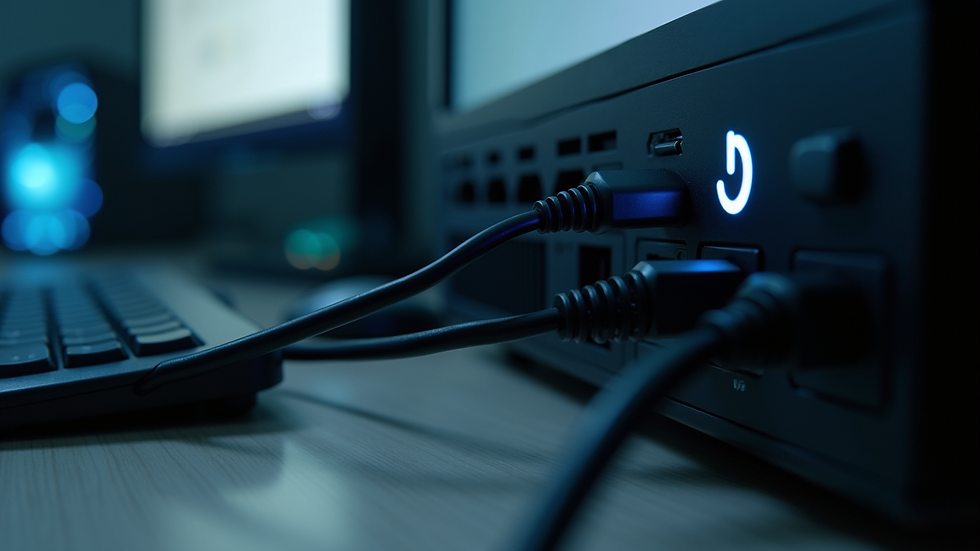
Check the power source: Make sure your computer is plugged in properly. Sometimes the simplest things get overlooked. If you’re on a laptop, check the battery and charger.
Look for signs of life: Are any lights blinking? Do you hear fans or drives spinning? These clues tell you if the computer is getting power.
Disconnect peripherals: Unplug all external devices like printers, USB drives, or external monitors. Sometimes these can cause startup conflicts.
Try a hard reboot: Hold down the power button for 10 seconds to force a shutdown, then press it again to restart.
Boot into Safe Mode: This loads only essential drivers and can help you identify if a recent software change is causing the problem.
If these steps don’t work, it might be a hardware issue or a deeper software problem. But don’t worry, we’ll cover more troubleshooting tips below.

Diagnosing Hardware Issues: What to Look For
Hardware problems can be tricky, but some signs are easy to spot.
No power at all: If your computer doesn’t turn on and no lights come on, check your power outlet and cables. Try a different outlet or power strip.
Beeping sounds: Many computers use beep codes to signal hardware problems. Listen carefully and look up the beep pattern for your model.
Overheating: If your computer shuts down suddenly or runs very hot, dust buildup or failing fans might be the cause. Cleaning vents and fans can help.
Strange noises: Clicking or grinding sounds often mean a failing hard drive. Back up your data immediately if you hear these.
Peripheral issues: If your keyboard, mouse, or monitor isn’t working, try swapping cables or testing with another device.
Hardware fixes can sometimes be done at home, but if you’re unsure, it’s best to get professional help.
What are the Most Common Computer Failures?
Knowing the usual suspects can help you troubleshoot faster. Here are some of the most frequent computer failures we see:
Slow performance: Often caused by too many programs running, malware, or insufficient RAM.
Blue screen errors: These “stop errors” usually point to driver conflicts or hardware failures.
Software crashes: Outdated or corrupted software can cause programs to freeze or close unexpectedly.
Internet connectivity issues: Problems with your network adapter or router can disrupt your connection.
Startup failures: Missing or corrupted system files can prevent your computer from booting.
Understanding these common problems helps us narrow down the cause and find the right fix.

How to Troubleshoot Common Computer Problems
If you want to troubleshoot common computer problems effectively, here are some general tips that work across many issues:
Restart your computer: It sounds simple, but rebooting often clears temporary glitches.
Update your software: Keep your operating system and applications up to date to avoid bugs and security holes.
Run antivirus scans: Malware can cause all sorts of trouble. Use a trusted antivirus program to check your system.
Check device drivers: Outdated or corrupted drivers can cause hardware to malfunction. Update them regularly.
Free up disk space: A full hard drive can slow down your computer. Delete unnecessary files or move them to external storage.
Use built-in troubleshooting tools: Most operating systems have diagnostic tools that can identify and fix common problems.
Backup your data: Always keep backups in case you need to restore your system or replace hardware.
These steps cover a lot of ground and can often get your computer running smoothly again.
When to Call in the Pros
Sometimes, the problem is beyond what we can fix ourselves. If you’ve tried the basics and your computer still won’t cooperate, it might be time to get expert help.
Persistent startup issues: If your computer won’t boot after trying startup troubleshooting tips, there could be a serious hardware or software fault.
Data recovery needs: If your hard drive is failing and you need to save important files, professionals have the tools to help.
Complex hardware repairs: Replacing parts like motherboards or power supplies is best left to trained technicians.
Virus removal: Some malware infections require advanced tools and expertise to fully remove.
Mobile repair services that come to you can be a lifesaver. They save you the hassle of packing up your computer and waiting days for a fix. Plus, they can often diagnose and repair issues on the spot.
Keeping Your Computer Healthy for the Long Haul
Prevention is better than cure. Here are some easy habits to keep your computer running well:
Regular updates: Set your system to update automatically.
Clean your hardware: Dust and debris can cause overheating and damage.
Use strong passwords: Protect your data from unauthorized access.
Avoid suspicious downloads: Only install software from trusted sources.
Backup regularly: Use cloud storage or external drives to keep copies of your important files.
By staying on top of maintenance, you’ll reduce the chances of unexpected breakdowns.
We hope these tips help you feel more confident when your computer acts up. Remember, a little troubleshooting goes a long way, and when you need a hand, professional mobile repair services are just a call away. Keeping your tech running smoothly means less downtime and more time doing what matters most.


Comments