


Essential Steps for PC Diagnostic and Repair: Your Computer Repair Guideline
When your computer starts acting up, it can feel like the end of the world. But don’t worry - we’ve all been there. Fixing a PC isn’t always about calling in the pros right away. Sometimes, a little know-how and patience can save you time and money. Let’s walk through the essential steps for diagnosing and repairing your PC. This computer repair guideline will help you get to the root of the problem and decide what to do next.
Understanding the Basics: Your Computer Repair Guideline
Before diving into repairs, it’s important to understand what might be wrong. Computers can have hardware or software issues, and sometimes both. Here’s a quick rundown of common problems:
Slow performance: Could be caused by too many programs running, malware, or failing hardware.
Unexpected shutdowns or restarts: Often linked to overheating, power supply issues, or faulty components.
Blue screen errors: Usually hardware or driver-related.
No power or display: Could be a power supply, motherboard, or monitor problem.
Unusual noises: Hard drive or fan issues.
Knowing these symptoms helps us narrow down the cause. Start by asking yourself: When did the problem start? Did you install new software or hardware recently? Has your PC been exposed to physical damage or power surges? These clues are gold.
Step 1: Initial Checks and Basic Troubleshooting
Let’s start simple. Before opening your PC or running complex diagnostics, try these quick checks:
Restart your computer. It sounds basic, but many issues clear up with a reboot.
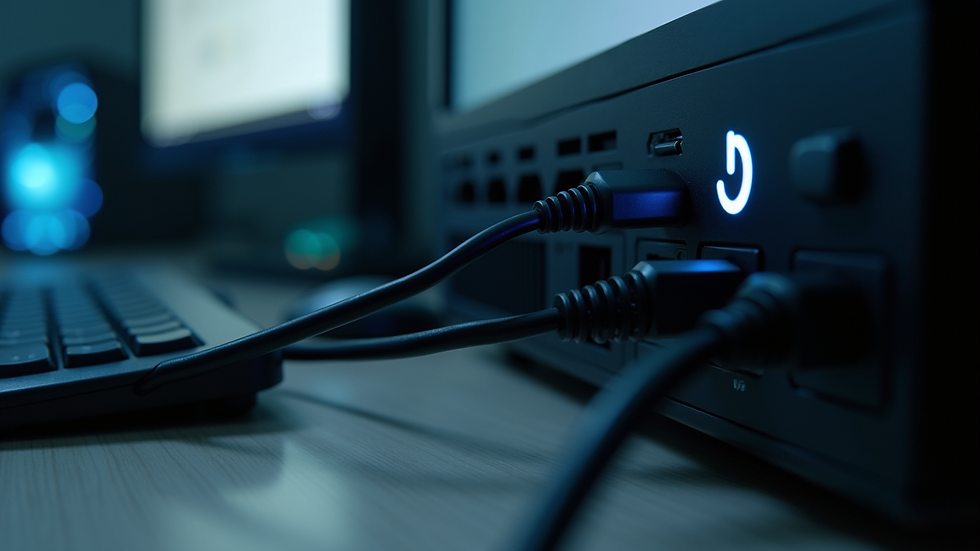
Check all cables and connections. Loose power cords, monitor cables, or USB devices can cause problems.
Look for error messages. Write down any codes or messages you see.
Boot into Safe Mode. This loads only essential drivers and can help identify software conflicts.
Run a virus scan. Malware can slow down or crash your system.
If your PC won’t turn on at all, check the power outlet and power strip. Try a different outlet if possible. If you hear beeps when starting up, those beep codes can tell you what’s wrong - look them up for your PC model.
Step 2: Using Diagnostic Tools to Pinpoint Issues
Once the basics are covered, it’s time to dig deeper. Diagnostic tools can help identify hardware or software faults. Here are some tools and methods we recommend:
Windows Memory Diagnostic: Tests your RAM for errors.
CHKDSK (Check Disk): Scans your hard drive for bad sectors and file system errors.
Device Manager: Look for hardware with warning icons indicating driver or hardware issues.
System File Checker (SFC): Repairs corrupted system files.
Third-party diagnostic software: Tools like CrystalDiskInfo for hard drive health or HWMonitor for temperature and voltage readings.
If you’re comfortable opening your PC, check inside for dust buildup or loose components. Dust can cause overheating, which leads to shutdowns or slow performance. Use compressed air to clean fans and vents carefully.
Remember, if you’re unsure about opening your PC, it’s okay to call in a professional. Sometimes, a quick mobile repair visit can save you a lot of hassle.
Step 3: How much does Best Buy charge for a PC diagnostic?
If you’re considering professional help, you might wonder about costs. For example, Best Buy charges a diagnostic fee that typically ranges from $49.99 to $99.99 depending on the issue and location. This fee covers the time and expertise needed to identify the problem.
Keep in mind, some repair shops waive the diagnostic fee if you proceed with the repair. It’s always a good idea to ask upfront about pricing and what’s included. Mobile repair services, like the one we offer, often provide more flexible and convenient options without the overhead of a physical store.
Step 4: Repair or Replace? Making the Right Call
After diagnosing the problem, it’s time to decide: repair or replace? Here’s how to think about it:
Hardware issues: If a component like RAM, hard drive, or power supply is faulty, replacing that part is usually straightforward and cost-effective.
Software problems: Reinstalling the operating system or updating drivers can fix many issues.
Age of the PC: If your computer is more than 5 years old and has multiple failing parts, investing in a new machine might be smarter.
Cost vs. value: Compare repair costs to the price of a new PC. Sometimes repairs add up quickly.
If you’re unsure, a professional diagnostic can help you weigh your options. And remember, regular maintenance can extend your PC’s life and prevent many common problems.

Step 5: Preventive Tips to Keep Your PC Running Smoothly
Once your PC is up and running, let’s keep it that way. Prevention is key to avoiding future headaches. Here are some easy tips:
Keep your software updated: Operating system, drivers, and antivirus.
Run regular virus scans.
Clean your PC physically every few months.
Avoid installing unnecessary programs.
Backup your data regularly.
Use a surge protector to guard against power spikes.
Monitor system temperatures to prevent overheating.
By following these steps, you’ll reduce the chances of needing major repairs. Plus, your PC will feel faster and more reliable.
Bringing It All Together: Your Go-To PC Diagnostic and Repair Resource
We’ve covered a lot, but the key takeaway is this: diagnosing and fixing your PC doesn’t have to be scary. With a little patience and the right approach, many issues can be solved quickly. And if you ever need help, mobile repair services are a fantastic option. They bring the repair shop directly to you, making tech fixes easy and convenient.
If you want to learn more about pc diagnostic and repair, check out trusted local services that specialize in mobile support. They understand the unique needs of Colorado Springs and surrounding areas and can get your computer back in shape without the hassle of dropping it off somewhere.
Remember, your PC is a tool - treat it well, and it’ll serve you faithfully for years to come. Happy computing!


Comments