


Computer Repair Diagnostics: What You Need to Know
When your computer starts acting up, it can be frustrating. Slow performance, unexpected crashes, or hardware that just won’t cooperate - we’ve all been there. But before you panic or rush to replace your device, it’s worth understanding the basics of computer repair diagnostics. This process helps pinpoint what’s wrong so you can fix it efficiently and avoid unnecessary expenses.
Let’s dive into what computer repair diagnostics involve, how they work, and what you can expect when you bring your device in for a checkup.
What Are Computer Repair Diagnostics?
Computer repair diagnostics is the first step in troubleshooting any PC problem. Think of it as a health check for your computer. Just like a doctor runs tests to find out what’s wrong with you, a technician runs diagnostic tools and checks to identify the root cause of your computer’s issues.
During diagnostics, the technician will:
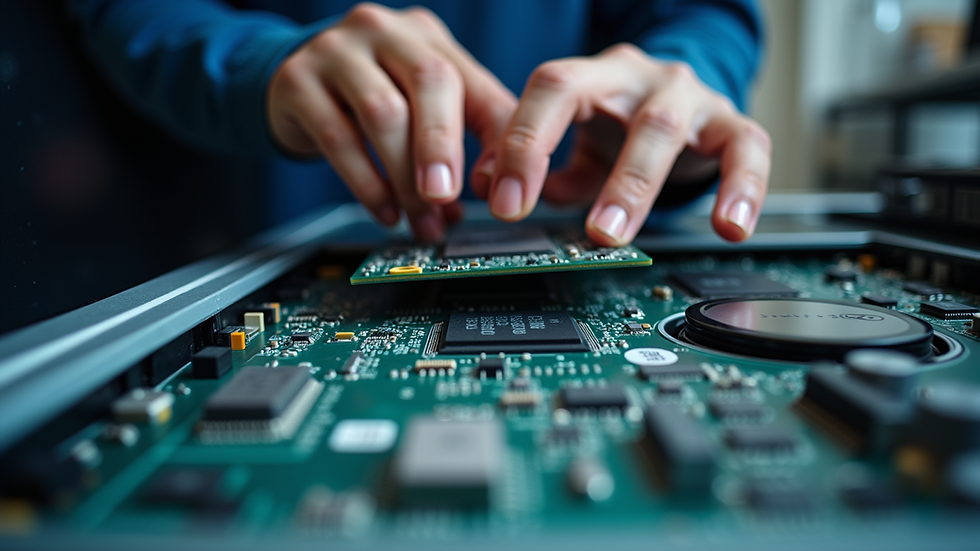
Inspect hardware components like the hard drive, RAM, and motherboard.
Run software tests to check for viruses, corrupted files, or system errors.
Analyze system logs and error messages.
Test the power supply and cooling system.
The goal is to get a clear picture of what’s causing the problem. Sometimes it’s a simple fix like updating drivers or removing malware. Other times, it might be a hardware replacement.

Why Is Computer Repair Diagnostics Important?
Skipping diagnostics can lead to wasted time and money. Imagine replacing a hard drive when the real issue is a corrupted operating system. Or buying new RAM when a simple software update would do the trick.
Here’s why diagnostics matter:
Saves money: Fix the real problem, not just symptoms.
Saves time: Avoid trial and error repairs.
Prevents data loss: Early detection of failing hardware can help you back up important files.
Improves performance: Identifies bottlenecks and outdated components.
For anyone in Colorado Springs needing computer repair, getting a thorough diagnostic is the smartest first step. It helps you make informed decisions about repairs and upgrades.
How much does Best Buy charge for a PC diagnostic?
If you’re curious about the cost of diagnostics, places like Best Buy typically charge a fee for their services. This fee covers the time and expertise needed to run tests and analyze your computer’s condition.
The diagnostic fee usually ranges from $50 to $100.
Some stores waive the fee if you proceed with repairs through them.
Prices can vary depending on the complexity of the issue and the type of device.
Keep in mind, mobile repair services like Reboot Repair LLC in Colorado Springs often offer competitive pricing and the convenience of coming to you. That means no need to pack up your computer and drive to a store.
Common Diagnostic Tools and Techniques
Technicians use a variety of tools to diagnose computer problems. Here are some common ones you might hear about:
POST (Power-On Self-Test)
This is the initial test your computer runs when it powers on. It checks basic hardware like memory and the CPU. If POST fails, you might see beep codes or error messages.
Hardware Diagnostic Software
Programs like MemTest86 test your RAM for errors. Hard drive utilities check for bad sectors or failing disks.
System Monitoring Tools
These track CPU temperature, fan speeds, and voltages to spot overheating or power issues.
Virus and Malware Scanners
Malicious software can cause crashes and slowdowns. Scanners help identify and remove threats.
Event Viewer and Logs
Windows and other operating systems keep logs of errors and warnings. Reviewing these can reveal software conflicts or driver problems.
Visual Inspection
Sometimes, a simple look inside the case can reveal dust buildup, loose cables, or damaged components.
What Happens After Diagnostics?
Once the diagnostic process is complete, the technician will explain what they found. This usually includes:
A list of issues detected.
Recommended repairs or replacements.
Estimated costs and timeframes.
Advice on whether it’s worth repairing or replacing the device.
At this point, you can decide how to proceed. If the problem is minor, you might opt for a quick fix. For major hardware failures, you might consider investing in a new computer.
Remember, a good repair service will be transparent and help you understand your options without pressure.
DIY Diagnostic Tips Before Calling a Pro
If you want to try some basic troubleshooting yourself before seeking professional help, here are a few tips:
Restart your computer: Sometimes a simple reboot clears temporary glitches.
Check cables and connections: Loose or damaged cables can cause issues.
Run built-in diagnostics: Many PCs have built-in tools accessible during startup.
Update your software: Make sure your operating system and drivers are current.
Scan for malware: Use trusted antivirus software to check for infections.
Free up disk space: Low storage can slow down your system.
If these steps don’t help, it’s time to get a professional diagnostic.
Why Choose Mobile Computer Repair in Colorado Springs?
Getting your computer fixed can be a hassle. Driving to a repair shop, waiting in line, and leaving your device behind can disrupt your day. That’s why mobile computer repair services are gaining popularity.
Here’s why mobile repair makes sense:
Convenience: The technician comes to your home or office.
Faster turnaround: No shipping or drop-off delays.
Personalized service: You can ask questions and get advice on the spot.
Safe and secure: Your data stays with you during the repair.
For folks in Colorado Springs, services like Reboot Repair LLC bring the repair shop directly to you. It’s a game-changer for busy individuals and businesses alike.
Wrapping It Up: Keeping Your Computer Healthy
Understanding computer repair diagnostics helps you take control when your PC acts up. It’s the key to smart repairs and avoiding unnecessary costs. Whether you’re dealing with a slow machine, strange noises, or startup problems, diagnostics give you the roadmap to fix it.
If you want to learn more or need expert help, check out pc diagnostic and repair services that come to you. Keeping your tech running smoothly doesn’t have to be complicated or stressful.
Stay proactive, and your computer will thank you!


Comments